The video and walkthrough below show exactly whatβs happening when you build your own lessons in Kidstrument: how you choose activities, save lessons, move them around your yearly plan, and teach them instantly in class.
The GIFs below zoom in on each step β from picking activities to teaching live from the grid.
Kidstrument already includes a complete music curriculum from Early Years to Year 6. But every school is different: mixed-age classes, breakfast clubs, assemblies, themed weeks, staff strengths β itβs never one-size-fits-all.
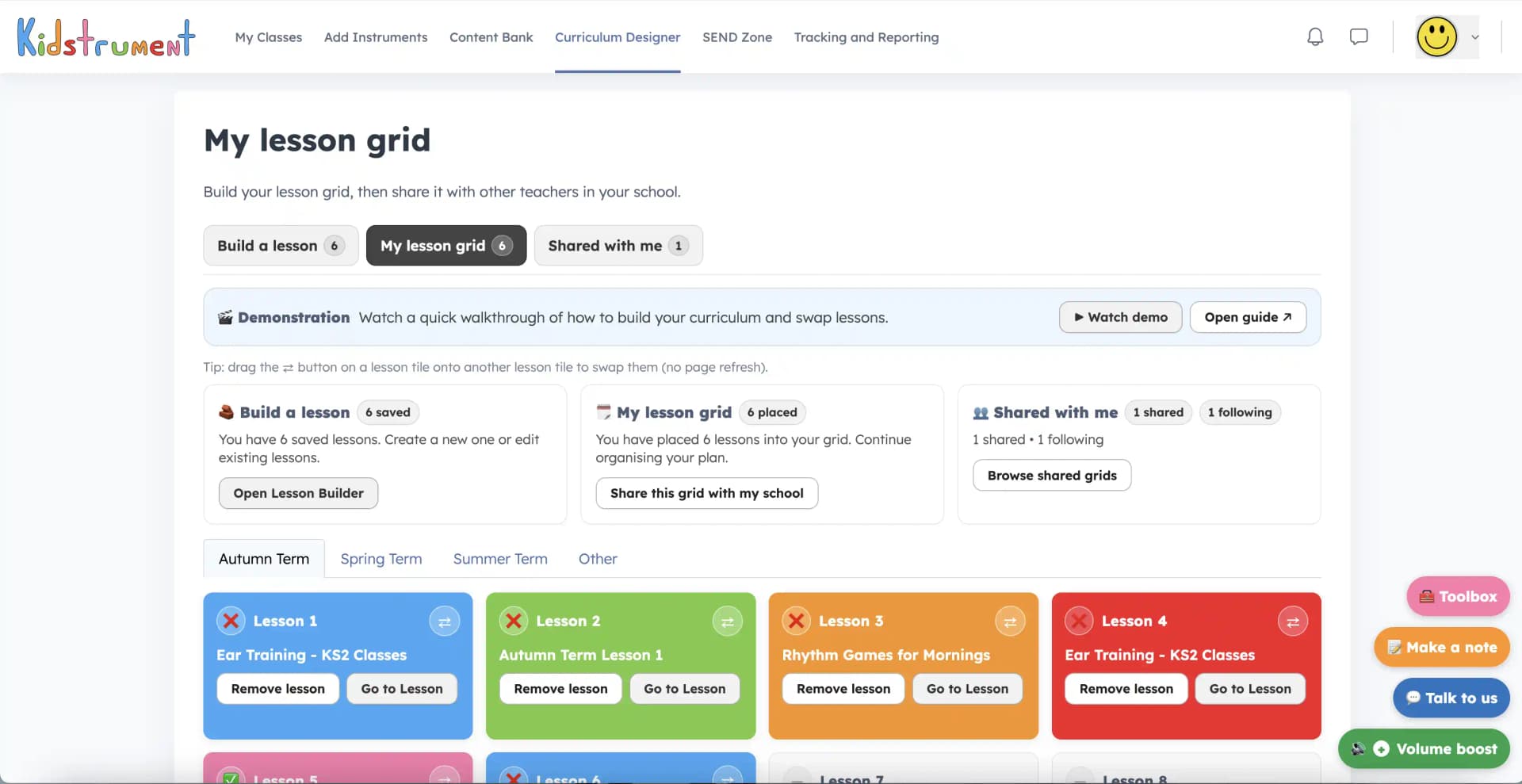
The Curriculum Designer is where you shape that curriculum for your context. Each year is laid out as a grid of 12 lesson slots per term, plus an βOtherβ section for assemblies, clubs, enrichment afternoons, cover lessons, or anything else you want quick access to. Everything you build here is saved and reusable across the year β and across classes.
Hereβs how the Curriculum Designer works from start to finish. Each step is a natural place for a short GIF: opening the Content Bank, picking activities, naming the lesson, dropping it into the grid, and teaching from the screen.
Start in the Zone of Inspiration β Kidstrumentβs full content bank. This includes rhythm work, warm-ups, call-and-response, pitch games, listening tasks, movement and dance sessions, ukulele starters, and more. On the right-hand side youβll see the Custom Lesson Builder, where you decide what goes into your lesson.
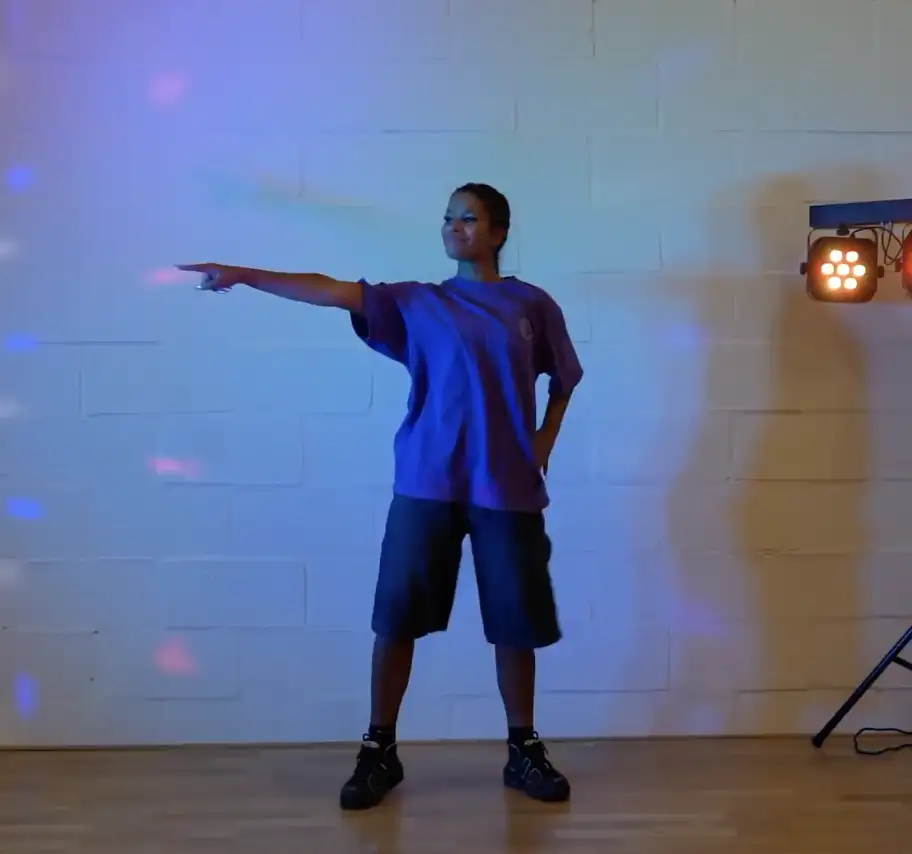
Click to add activities into your custom lesson. You can choose up to 15 activities for a single lesson, mixing warm-ups, movement, listening, quick theory checks, and performance moments into one sequence. In the video, the example is a high-energy dance lesson built from different genres (funk, disco, Motown, pop, etc.).
Give your lesson a clear name, such as βY3 Pulse and Movement β Spring 1β, βKS1 Assembly Songsβ, or βBreakfast Club Dance Setβ. Then click Save lesson. This creates a reusable lesson you can drop anywhere in your yearly grid β even in multiple places.
Switch to the Curriculum Designer grid. Choose a saved lesson and place it into a tile in the term view or the βOtherβ section. You can re-use the same lesson in more than one slot. Need to move things later? Use the arrows on a tile, then click the new tile to move it β no rebuilding required.
When youβre ready to teach, just click Go to lesson. Kidstrument launches your custom lesson and jumps straight to the first activity. You teach directly from the screen β warm-up, main task, listening, performance, cooldown β marking activities as done on the right-hand side as you go.
Completion feeds into tracking and reporting, so subject leaders can see coverage and progression without extra paperwork.
Need to tweak a lesson? Re-open it in the Custom Lesson Builder to add or remove activities. You can either overwrite the original or save it as a new variant (ideal for different classes or clubs).
There are also two levels of removal:
Together, these steps let you build lessons that match your timetable, your pupils, and your staff β while keeping a clear, repeatable record of whatβs been taught across the year.
The Curriculum Designer isnβt just a nice interface β itβs designed to respect your timetable, support non-specialists, and give leaders the coverage and progression evidence they need.
Build lessons for 30β45 minute music slots, or shorter 10β15 minute βmusic burstsβ for mornings, assemblies, and clubs. The βOtherβ section is perfect for quick-grab lessons you repeat through the term.
Any teacher can walk in, click Go to lesson, and deliver. The structure is already there β pulse work, movement, listening, call-and-response and more β so no one is reinventing the wheel.
Because lessons are saved, named, and re-usable, you can show a clear sequence over time: where concepts are introduced, developed, and deepened. This aligns with Ofstedβs expectations for showing intent, implementation, and impact in music.
Build once, use everywhere: Year 3 classroom teaching, Year 4 cover, Friday assembly, breakfast club warm-ups. Thatβs a big reduction in planning load for staff while keeping the music offer consistent.
The Curriculum Designer works alongside ready-made Schemes of Work, the Content Bank, and tracking dashboards. You can choose the route that fits each teacher and class β off-the-peg schemes, custom pathways, or a blend of both.
Professionally sequenced units you can teach straight away. Use them as a secure baseline, then customise with the Curriculum Designer wherever your school needs extra flexibility.
See Schemes of WorkRhythm, pitch, listening, performance, composition, movement, ukulele starters, and more. The Curriculum Designer lets you pick from this full library to build lessons that match your cohort.
Browse sample activitiesEvery time a class completes a lesson from the grid, it feeds into simple dashboards for subject leaders and SLT β showing coverage and learning outcome progression across the whole school.
See tracking & reportingTo build your first custom lesson: